

Most IE issues are fixed by performing a reset, watch the video…
Setting a PAC file in Firefox
Here is a YouTube video on setting a PAC file in Firefox:-
Setting a PAC file in IE8
Here is a simple YouTube video on how to set a PAC file in IE8 and example of a PAC file is at the bottom of this post:-
iPhone / iPad Exchange Setup Quick Guide

To add an Exchange account to your ipad/iphone or ipod, go to Settings > Mail, Contacts, Calendars > Add Account > Microsoft Exchange.
On the next screen, enter your complete email address, domain, username, password, and a description (anything you like for this).
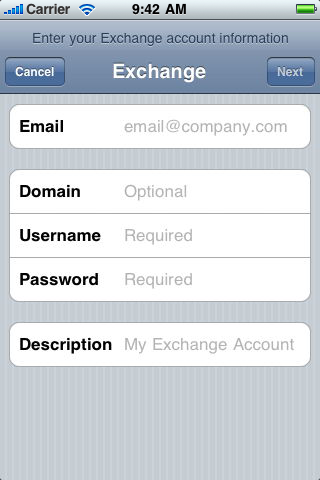
If the settings can’t be automatically verified, you will be taken to the next screen for you to enter the server name manually

Choose which type or types of data you would like to synchronize:
Mail, Contacts, and Calendars. Note that by default, only three days’ worth of email is synchronized. To synchronize more, go into Settings, then Mail, Contacts, Calendars, select your Exchange account, and tap on Mail days to sync.
Note that after configuring an Exchange ActiveSync account, all existing contact and calendar information on the device is overwritten.

Opening Second Mailbox, Outlook 2007
 In Outlook you may need to open more than one mailbox, if perhaps someone has left or is on holiday, there is several ways to achive this, but if you need to have it open permanently, everytime that you open Outlook, here’s a video on how to do it in Oulook 2007:-
Setting Up LogMeIn

If we cant gain remote access, you may be asked to download LogMeIn and install it yourself so that we can remotely support your PC or Mac, please follow this video to download and setup LogMeIn on you computer.
Printing Status Page HP 2015

Follow this video to print a status page on an HP 2015 Printer.
Resetting Internet Explorer 8
 Internet Explorer can sometimes work one minute and then stop working for no apparant reasons, most issues with IE8 acting strangely can be fixed by performing a reset, as explained in this video…